Documentation
Live Change Alerts for Jira · Last updated: 4 October 2026
1. Overview
Jira does not tell you when the work item in front of you has changed. You open a work item, read it and start working, and meanwhile a colleague assigns it to themselves, adds a comment or changes a field. Usually you find out only when you refresh the page.
Live Change Alerts for Jira closes that gap:
- A pop-up warns you when someone else changes the work item you have open, and tells you who changed it and what changed.
- The Who's Also Viewing panel shows who else has the same work item open, so you can see before you both act on it.
- Jira admins, project admins and each user can turn single features off.
2. Requirements
- Jira Cloud: Jira or Jira Service Management.
- The app works in the standard work item view, in the browser.
- Alerts appear only while the work item is open in your browser. The app does not send emails or mobile notifications.
3. Installing the app
- As a Jira admin, open Apps > Explore more apps in Jira, or go to the app's page on the Atlassian Marketplace.
- Search for Live Change Alerts for Jira and select Get app (or Try it free).
- Review and accept the permissions the app asks for.
There is nothing to set up. Once installed, the app works on every work item for every user. To limit it, see Settings.
Live Change Alerts is a paid app. Without an active licence the alerts stop and the Who's Also Viewing panel shows: Live Change Alerts needs an active licence. Ask your Jira admin to renew or buy it. The settings pages keep working.
4. Change alerts
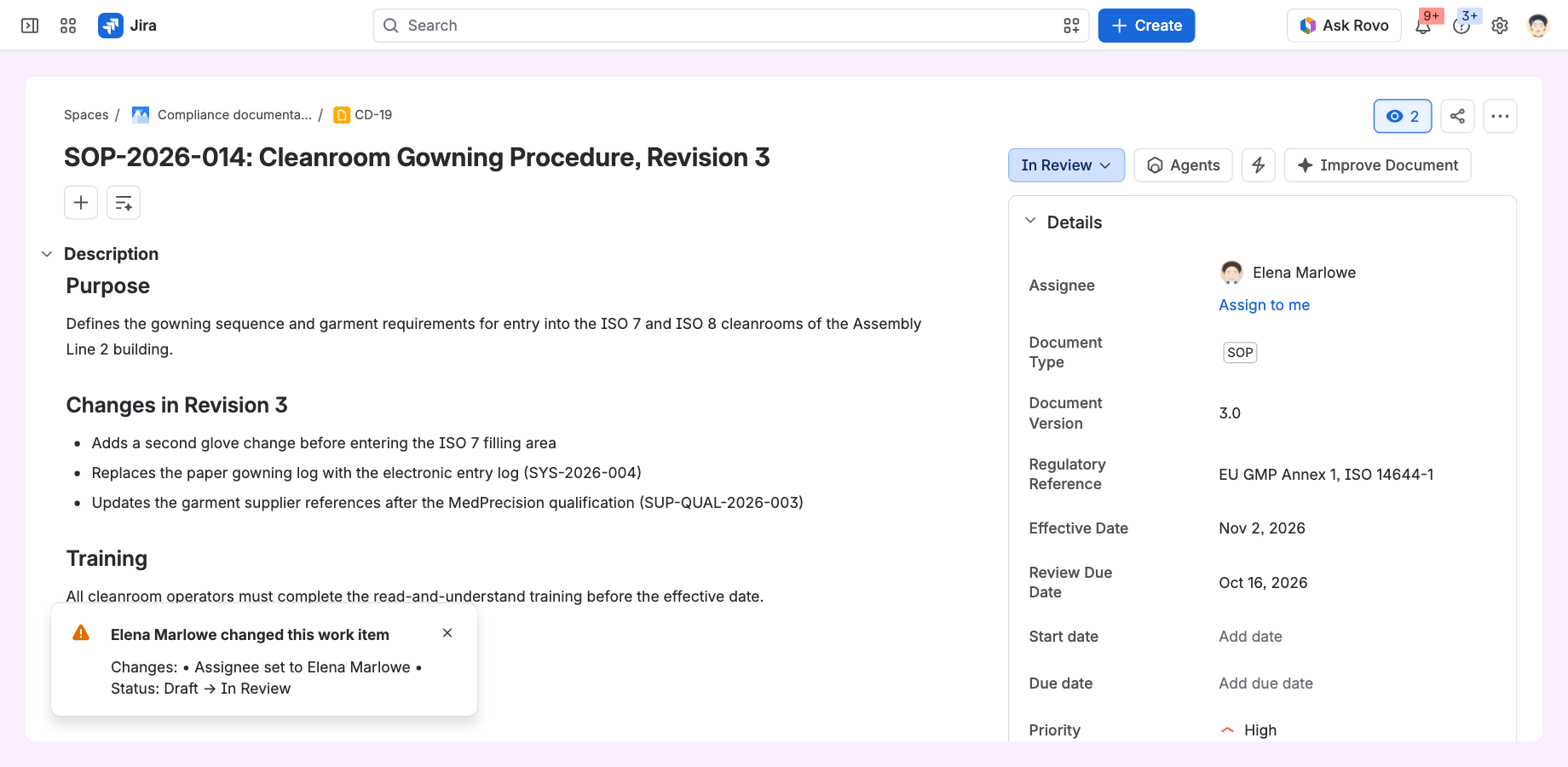
While you have a work item open, the app watches it for changes made by other people. When someone else changes it, a pop-up appears in the bottom-left corner of the page:
- The title names the person: Elena Marlowe changed this work item.
- Below it, the changes are listed, for example Status: Draft → In Review, Assignee set to Elena Marlowe, Comment added or Comment edited.
- For long values, such as a description, only the field name is shown: Description changed.
- If several people changed the work item, each person gets their own pop-up.
The pop-up stays on screen until you close it, so you do not miss it when you look away. It usually appears within seconds of the change.
The app does not refresh the page for you. The pop-up tells you that what you see may be out of date. Refresh the page to see the latest version of the work item. Jira updates some fields, such as status and assignee, by itself.
What does not raise an alert
- Your own changes, including changes you make in another browser tab.
- Changes to other work items.
- Changes made before you opened the work item.
If the app learns that someone else changed the work item but cannot show the details (for example, the change is in something you do not have permission to see), the pop-up says only This work item was changed.
5. Who's also viewing
The Who's Also Viewing panel is in the right-hand column of the work item, below the work item's details. Expand it once; Jira remembers whether it is open. It lists the other people who have the work item open right now and updates by itself as people open and leave it. When nobody else has it open, it says No one else has this work item open.
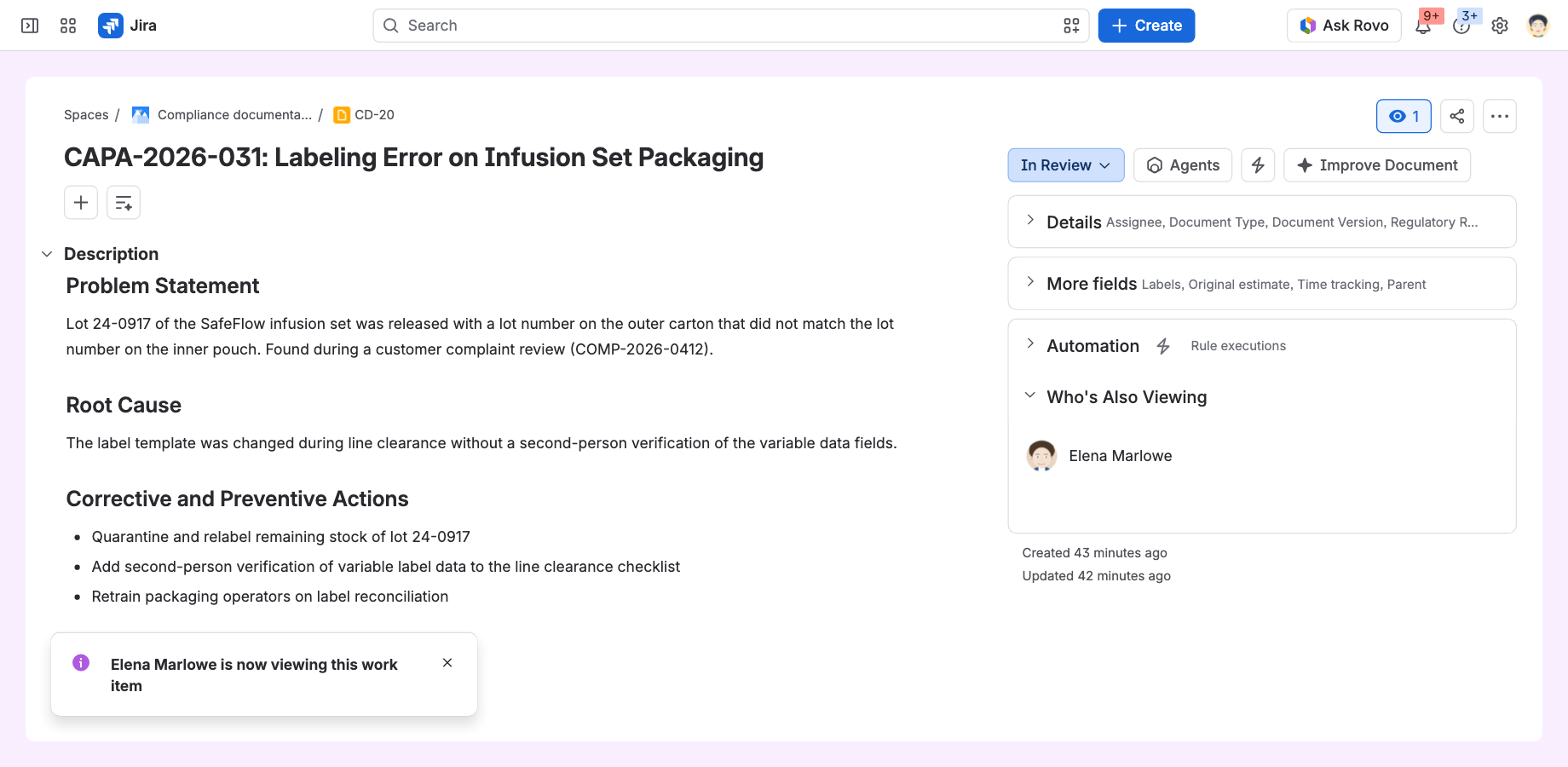
Short pop-ups also tell you about other viewers. They close by themselves after a few seconds:
- Also viewing: … when you open a work item that others already have open.
- … is now viewing this work item when someone else opens it.
- … is no longer viewing this work item when someone else leaves it.
You are never listed as a viewer to yourself, even if you have the work item open in several tabs. A person who opens another work item or another Jira page is removed straight away. A person who closes the browser tab is removed after a short delay, normally within a few minutes.
6. Settings
Everything is on by default. Settings exist at three levels, and each level can only turn things off: a feature is on for a user only if it is on for the site, for the project and for that user.
| Level | Who | Where in Jira |
|---|---|---|
| Site | Jira admins | Settings (gear icon) > Apps, then Live Change Alerts in the sidebar. Also opened by Configure on the app in Manage apps. |
| Project | Project admins | The project's Space settings > Apps > Live Change Alerts |
| Personal | Every user, for themselves | Personal settings > Apps > Live Change Alerts |
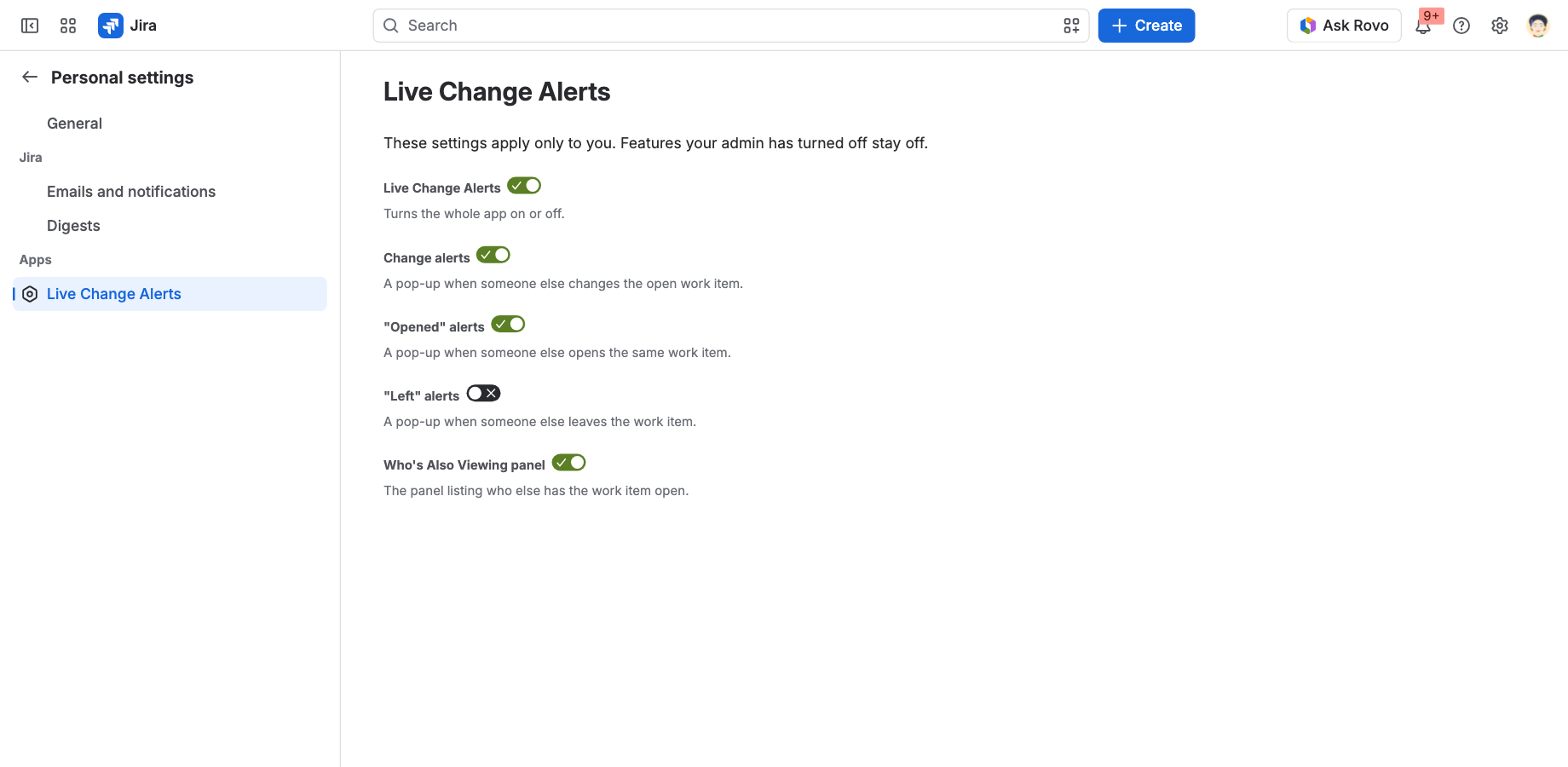
Each page has the same switches. Changes are saved as soon as you flip a switch.
| Switch | What it controls |
|---|---|
| Live Change Alerts | The whole app. When it is off, nothing of the app is loaded. |
| Change alerts | The pop-up when someone else changes the open work item. |
| "Opened" alerts | The pop-ups when someone else opens the same work item ("Also viewing", "is now viewing"). |
| "Left" alerts | The pop-up when someone else leaves the work item. |
| Who's Also Viewing panel | The panel listing who else has the work item open. |
Site settings (Jira admins)
The site page also has Projects must opt in. When it is on, the app is off in every project until a project admin turns it on in that project's settings. Use it to roll the app out to selected projects first.
Project settings (project admins)
The project page applies to everyone working in the project. Switches that a Jira admin has turned off for the whole site are shown as off and cannot be changed. The Live Change Alerts switch can be changed only when Projects must opt in is on; then it turns the app on or off for the project.
Personal settings (every user)
Each user can turn the app or single features off for themselves. Features that an admin has turned off stay off, whatever the personal setting says.
7. Good to know
- The app alerts you; it does not lock work items or block edits.
- The app does not refresh the page for you. The pop-up tells you a refresh is needed.
- Alerts appear only while the work item is open in your browser.
- You only ever see details of changes you are allowed to see in Jira.
8. Troubleshooting
I do not get any pop-ups
- Check that the change was made by someone else. Your own changes never raise an alert.
- Check your Personal settings > Apps > Live Change Alerts, then ask your project admin and Jira admin to check theirs. A feature is on only if it is on at all three levels.
- If your Jira admin has turned on Projects must opt in, the project must turn the app on in its settings.
- Make sure the work item is open in the standard work item view.
The Who's Also Viewing panel is missing
The panel is hidden where the app or the Who's Also Viewing panel switch is off for the site, the project or you. If it is there but collapsed, select its title to expand it.
The panel says the app needs a licence
The app's licence for your site is not active. Ask your Jira admin to renew or buy it from Apps > Manage apps.
Someone is still listed after they left
If a person closes the browser tab instead of moving to another page, the app notices when their browser stops reporting the work item as open. They are removed within a few minutes.
9. Privacy and security
- The app runs entirely on Atlassian Forge. It makes no connections to external servers and no data leaves Atlassian.
- It reads work items, their change history and comments as the signed-in user, only to detect and describe changes. Work item content is not stored.
- It stores temporary records of who has a work item open (Atlassian account identifiers, which expire after 10 minutes) and the on/off settings.
Details: Privacy Policy, Cloud Security Statement, Data Processing Agreement and Terms of Service.
10. Support
For questions, problems or feature requests, contact us. Please include your Jira site address and, for problems, what you did and what you saw.
Support portal: Live Change Alerts Support