Documentation
Estimation Poker for Jira · Last updated: 16 October 2026
1. Overview
Estimation Poker for Jira lets your team estimate work items the planning poker way: everyone picks a card in secret, the votes are revealed together, and the agreed value is saved to the board's estimation field.
- Vote on the work item itself, before the meeting, in the Estimate panel.
- Or estimate together in a session over a sprint, the backlog or a filter, on the project's Estimation page.
- Both are the same votes: votes cast on the work item count in the session and the other way round. Work items where everyone already agrees are saved without discussion, so the meeting only stops where people disagree.
- Nothing to set up: the app works in every project with the Fibonacci deck and finds each board's estimation field by itself.
2. Requirements
- Jira Cloud, with a Scrum board that estimates with a field, such as Story Points (company-managed projects) or Story point estimate (team-managed projects).
- The estimation field must be on the work item's screen, so that it can be edited.
- The app works in the browser. The Jira mobile app does not show it.
3. Installing the app
- As a Jira admin, open Apps > Explore more apps in Jira, or go to the app's page on the Atlassian Marketplace.
- Search for Estimation Poker for Jira and select Get app (or Try it free).
- Review and accept the permissions the app asks for.
There is nothing to set up. Once installed, the app is on in every project. To limit it or change the deck, see Settings.
Estimation Poker is a paid app, free for up to 10 users. Without an active licence the Estimate panel and the Estimation page show: Estimation Poker for Jira needs an active licence. Ask your Jira admin to renew or buy it. The settings pages keep working.
4. Estimating on the work item
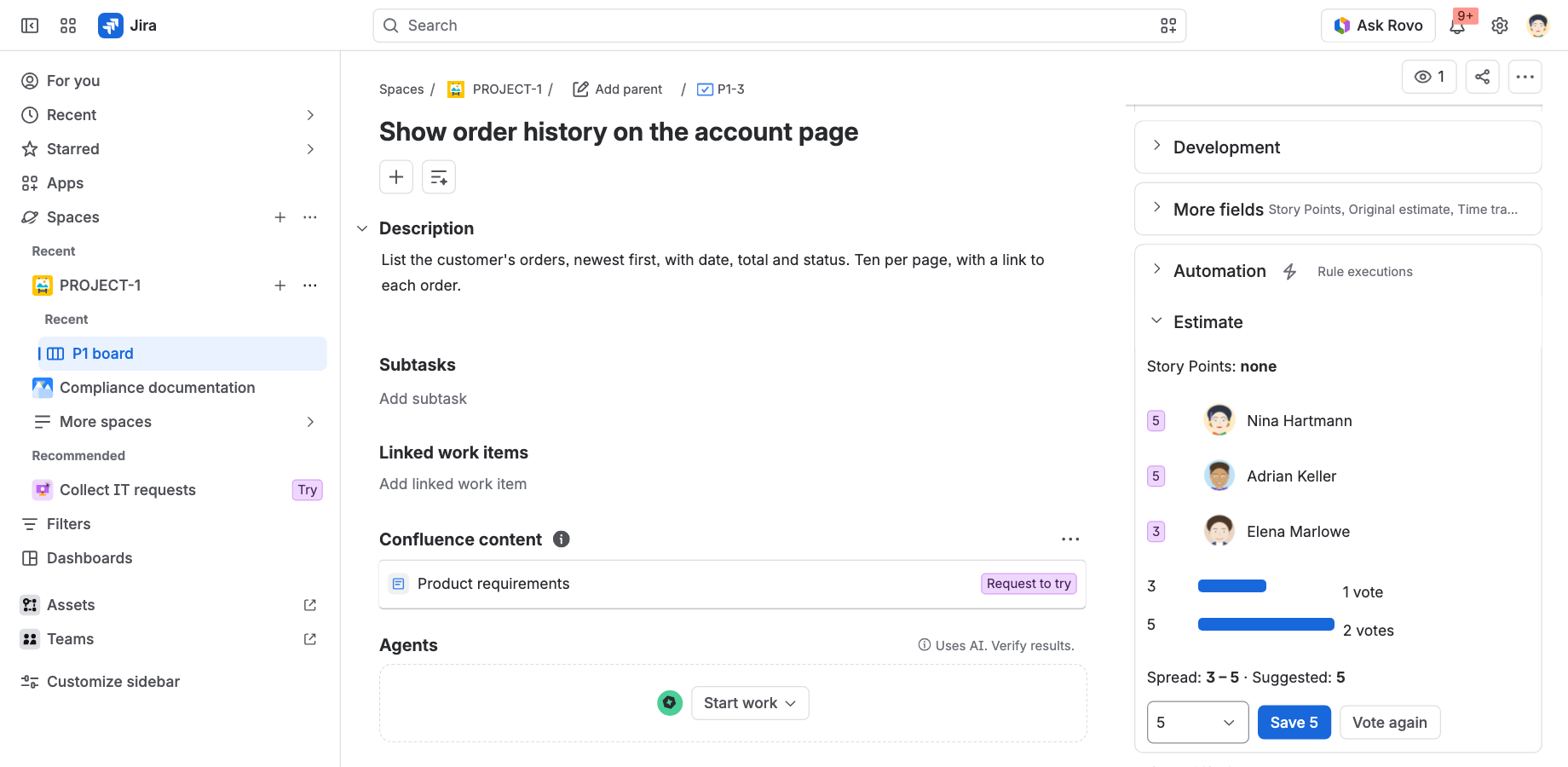
Open a work item. In the right-hand column there is an Estimate panel with the current estimate and a row of cards. Expand it once; Jira remembers whether it is open.
- Vote. Click a card. Everyone who has the work item open sees that you voted, but not what you picked. Click your card again to take your vote back. The ? card means "no opinion".
- Reveal. Once someone has voted, anyone who can edit the work item can click Reveal. People who had not voted yet can vote again in the next round. All votes appear at once, with a bar per card showing how many people picked it, the spread (for example 3 – 5) and a suggested value.
- Agree. If at least two people voted and all picked the same card (? votes are left out), the value is saved straight away. Otherwise, discuss, choose a value and click Save, or click Vote again to start a new round.
- Save. The value is written to the board's estimation field, as the person who saves it, so it appears in the work item's history in Jira. The save and its votes are added to the project's history.
The panel updates by itself when someone else votes, reveals or saves.
Anyone who can edit the work item can vote, reveal and save. There is no facilitator role.
5. Estimating together in a session
A session is a list of work items that the team goes through together, for example in refinement or sprint planning. Start one from:
- the sprint's ••• menu on the backlog: Estimate this sprint;
- the backlog's ••• menu: Estimate the backlog;
- the board's ••• menu: Estimate;
- the project's Estimation tab, where you choose a sprint, the backlog or a JQL filter.
Everyone who opens the same sprint, backlog or filter is in the same session; there is nothing to invite or share. The list holds the work items that have no estimate yet and are not done (up to 100, no subtasks). It is fixed when the first person opens the session; Rebuild list builds it again.
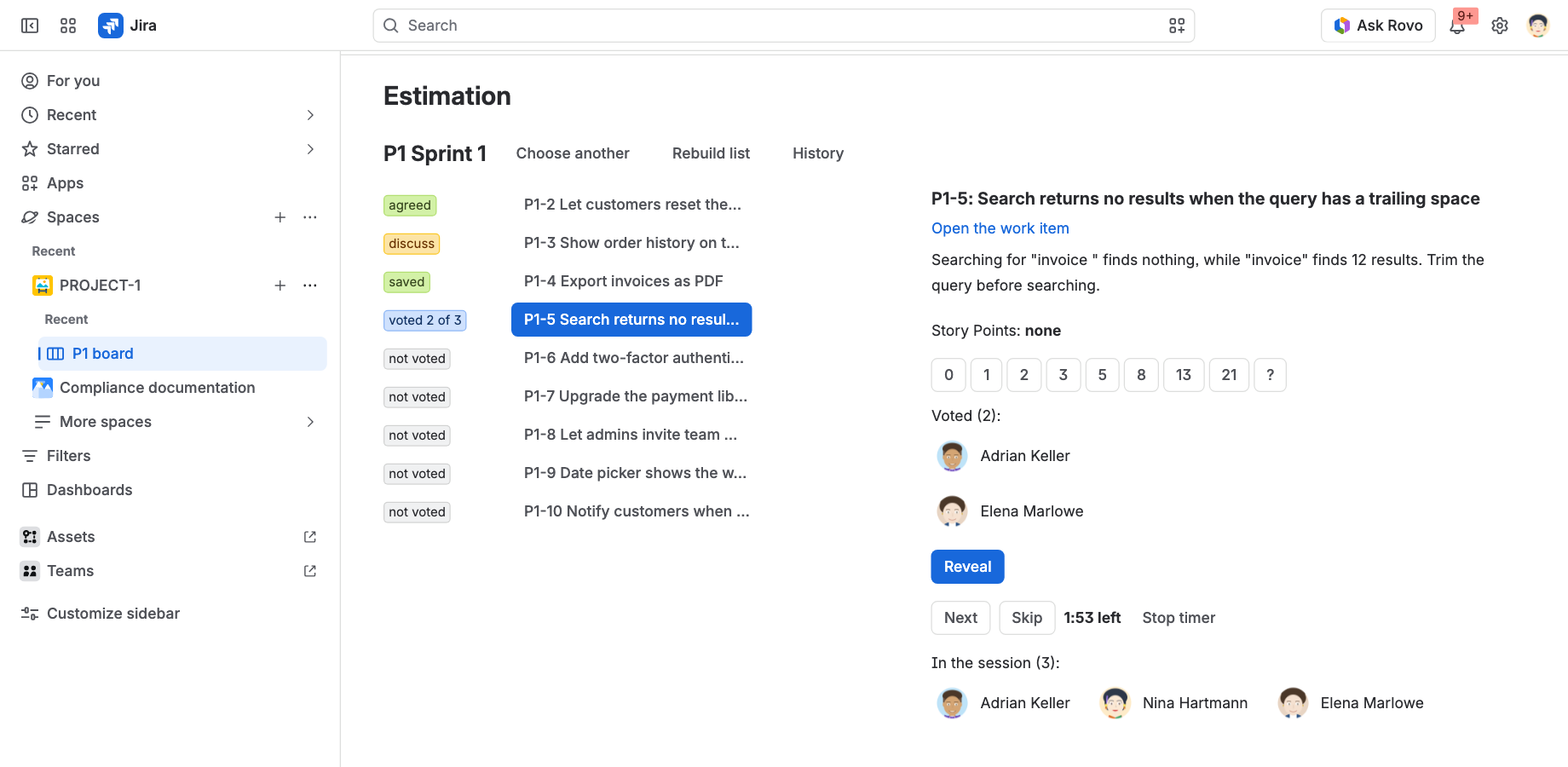
- On the left, each work item shows its state: not voted, voted n of m, agreed (saved because everyone picked the same card), discuss (revealed, votes differ), saved or skipped.
- On the right is the work item on screen with its description, the same cards as the Estimate panel, who has voted and who is in the session.
- Vote, reveal and save work exactly as on the work item. After a save, everyone moves to the next open work item. Next and Skip move on without saving.
- The timer counts down the time for discussion (2 minutes unless the project chose another length). It is a reminder only; nothing happens when it runs out.
6. History
History on the Estimation page lists the estimates saved in the project, newest first: the work item, the value saved, the votes that were revealed for it, who saved it and when, and whether it was saved from the work item or in a session. You only see entries for work items you are allowed to see in Jira.
Entries are kept for 90 days by default. A Jira admin can choose 24 hours, 30 days, 90 days, 1 year or never delete. A shorter period applies straight away to existing entries.
7. Settings
Everything works without settings. Settings exist at three levels:
| Level | Who | Where in Jira | What |
|---|---|---|---|
| Site | Jira admins | Settings (gear icon) > Apps, then Estimation Poker in the sidebar. Also opened by Configure on the app in Manage apps. | The app on or off; Projects must opt in; the default deck; how long the history is kept. |
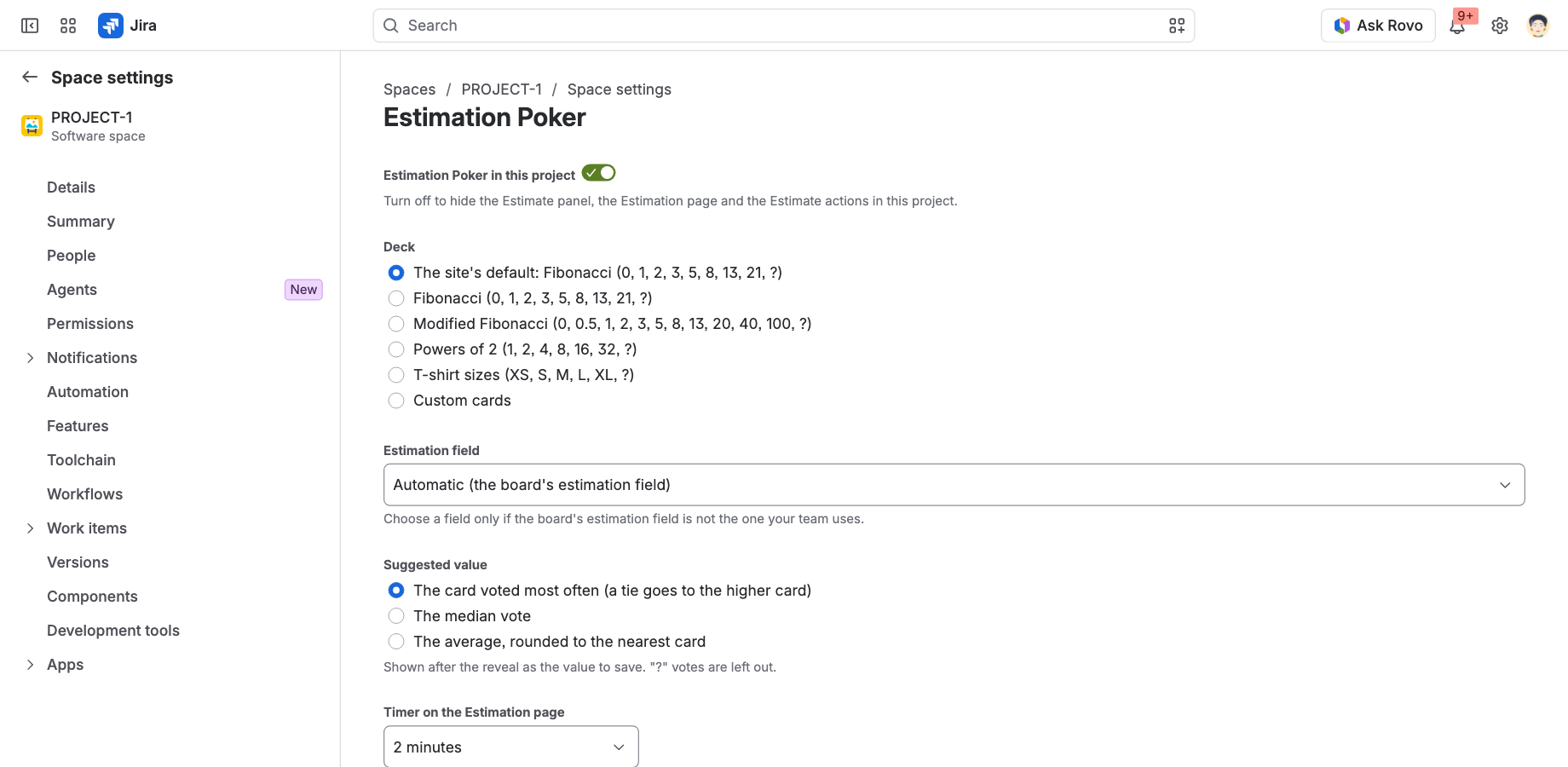
| Project | Project admins | The project's Space settings > Apps > Estimation Poker | The app on or off in the project; the deck; the estimation field; the suggested value; the timer length. |
| Personal | Every user, for themselves | Personal settings > Apps > Estimation Poker | Hide the Estimate panel for yourself. |
Decks
| Deck | Cards |
|---|---|
| Fibonacci (default) | 0, 1, 2, 3, 5, 8, 13, 21, ? |
| Modified Fibonacci | 0, 0.5, 1, 2, 3, 5, 8, 13, 20, 40, 100, ? |
| Powers of 2 | 1, 2, 4, 8, 16, 32, ? |
| T-shirt sizes | XS, S, M, L, XL, ?, saved as numbers: XS = 1, S = 2, M = 3, L = 5, XL = 8 by default (the project can change them) |
| Custom cards (project only) | Your own cards, typed as a list, for example 1, 2, 3, ? or S=2, M=3, L=5, ? |
Estimation field
By default the app uses the estimation field of the project's board (Board settings > Estimation). If your team estimates with a different field, a project admin can choose it on the project page.
Suggested value
After the reveal the app suggests a value to save: by default the card voted most often (a tie goes to the higher card). A project can choose the median vote or the average rounded to the nearest card instead. ? votes are left out.
Projects must opt in
When a Jira admin turns this on, the app is off in every project until a project admin turns it on in that project's settings. Use it to roll the app out to selected projects first.
8. Good to know
- Votes are hidden until the reveal. Before that, nobody, including admins, can see other people's cards in the app.
- Anyone who can edit a work item can vote, reveal, save, skip or move on. There is no facilitator role.
- One estimation field per project. The app does not estimate several fields at once.
- Only people with a Jira account on your site can vote.
9. Troubleshooting
The Estimate panel is missing
The panel is hidden where the app is off for the site or the project, and for users who hid it in their personal settings. If your Jira admin turned on Projects must opt in, the project must turn the app on in its settings. If the panel is there but collapsed, select its title to expand it.
"None of this project's boards estimates with a field"
The project's board does not use a field for estimation (for example it estimates by issue count). Change it in Board settings > Estimation, or ask a project admin to choose the field in the project's Estimation Poker settings.
"… is not on this work item's screen, or you cannot edit this work item"
Either you do not have permission to edit the work item, or the estimation field is not on the screen of its work item type. A Jira admin can add the field to the screen.
The panel or the page says the app needs a licence
The app's licence for your site is not active. Ask your Jira admin to renew or buy it from Apps > Manage apps.
A work item I estimated is still in the session list
The list is fixed when the session is opened. An estimate saved on the work item itself while the session is open shows in the list after a reload, or when the session reaches that work item. Rebuild list builds the list again.
10. Privacy and security
- The app runs entirely on Atlassian Forge. It makes no connections to external servers and no data leaves Atlassian.
- Votes are kept in Forge storage, hidden until the reveal, and deleted when the round ends. The history of saved estimates is kept for the period your Jira admin chooses (90 days by default).
- The app stores Atlassian account IDs, card values and settings. It does not store work item content.
- Estimates are written to Jira as the user who saves them, so Jira's own permissions and history apply.
Details: Privacy Policy, Cloud Security Statement, Data Processing Agreement and Terms of Service.
11. Support
For questions, problems or feature requests, contact us. Please include your Jira site address and, for problems, what you did and what you saw.
Support portal: Estimation Poker Support