Documentation
Sign for Jira · Last updated: 21 October 2026
1. Overview
Sign for Jira adds electronic signatures to Jira work items, for teams that must show who approved a record, when, with what meaning, and exactly which version they approved.
- A signer picks a meaning (such as Approval or QC Review), reads its statement and the space's consent message, and confirms with a personal 6-digit Signing PIN on top of their Atlassian login.
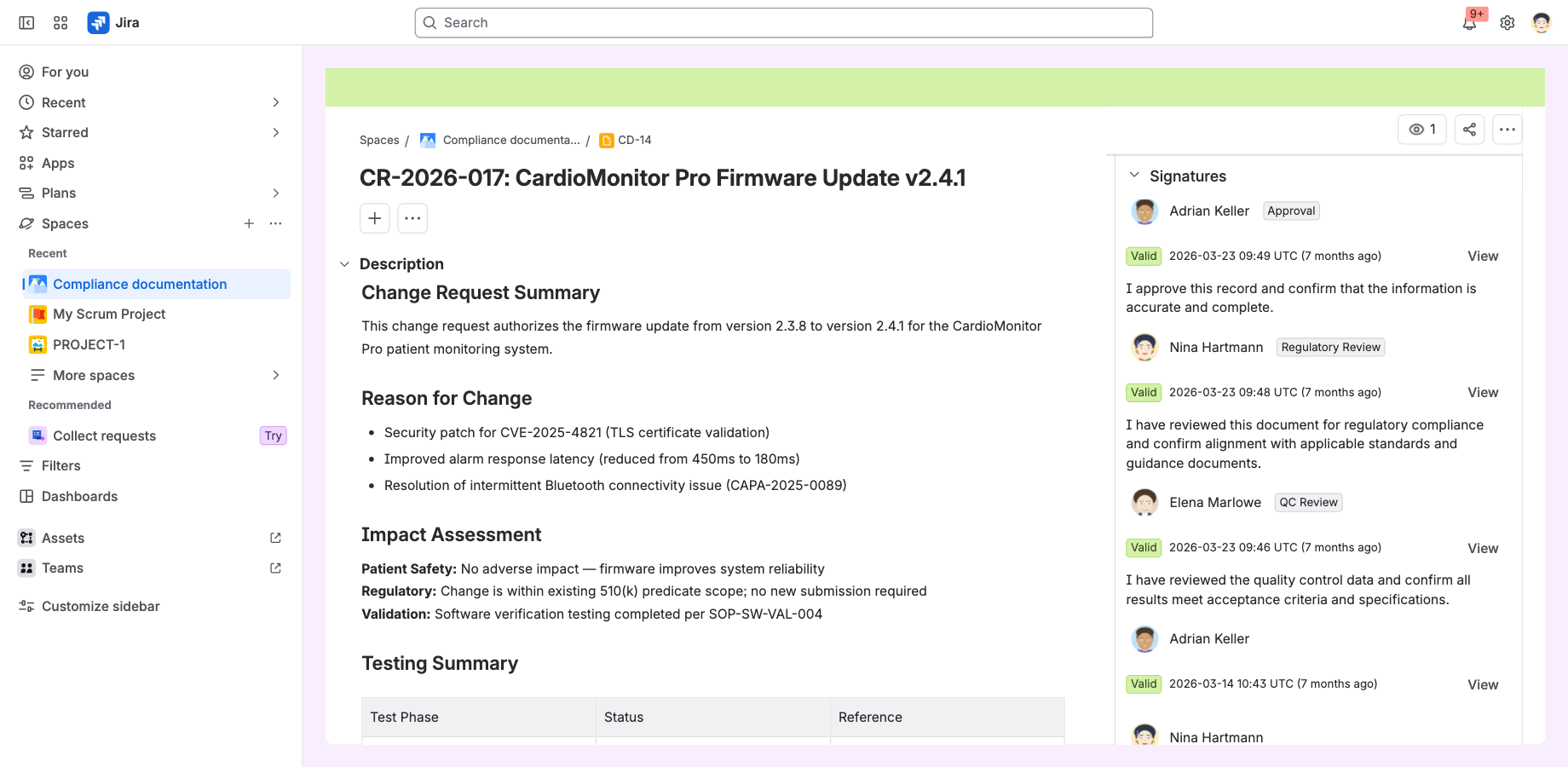
- Each signature records the signer, the time, the meaning and a SHA-512 hash of the signed fields. If any of those fields changes later, the signature shows as Invalid.
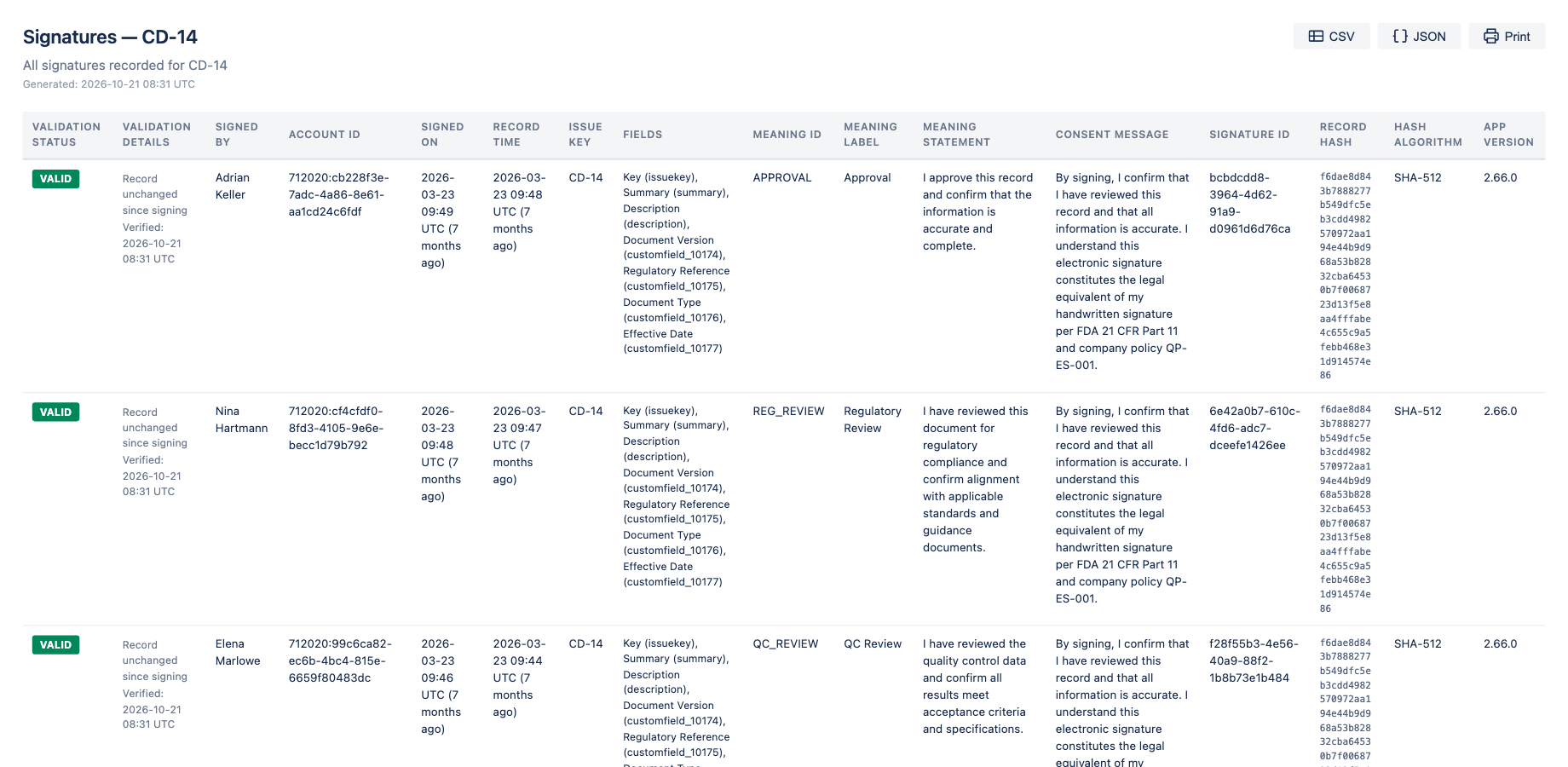
- The Signatures panel on the work item lists every signature; the Export view gives you the evidence as CSV, JSON or a printout.
- Workflow conditions and validators, a Jira Automation action, JQL-searchable fields and a read-only REST API let your process use the signatures.
2. Requirements
- Jira Cloud, in company-managed and team-managed spaces.
- Each signer needs a Jira account on your site and a Signing PIN, which they set themselves.
- The app works in the browser. The Jira mobile app does not show it.
3. Installing and updating the app
- As a Jira admin, open Apps > Explore more apps in Jira, or go to the app's page on the Atlassian Marketplace.
- Search for Sign for Jira and select Get app (or Try it free).
- Review and accept the permissions the app asks for.
After installation Sign is on in every space, with three meanings (Approval, Review, Author) and the work item's key, summary and description as the signed fields. To limit it to some spaces or change what is signed, see Settings. Then ask each signer to set a Signing PIN (section 4).
Major updates. An update that asks for new permissions, such as 5.0 (October 2026), is not installed automatically: a site admin accepts it under Administration > Apps > Connected apps, where Sign for Jira shows an Update button.
Sign for Jira is a paid app, free for up to 10 users. Without an active licence, signing stops with the message Your product is not licensed!; existing signatures, the Signatures panel, the Export view and the workflow rules keep working.
4. Your Signing PIN
Every signer sets their own PIN in Personal settings > Apps > Sign for Jira (your avatar at the top right, then Personal settings). Until you do, the Sign dialog shows a link to that page.
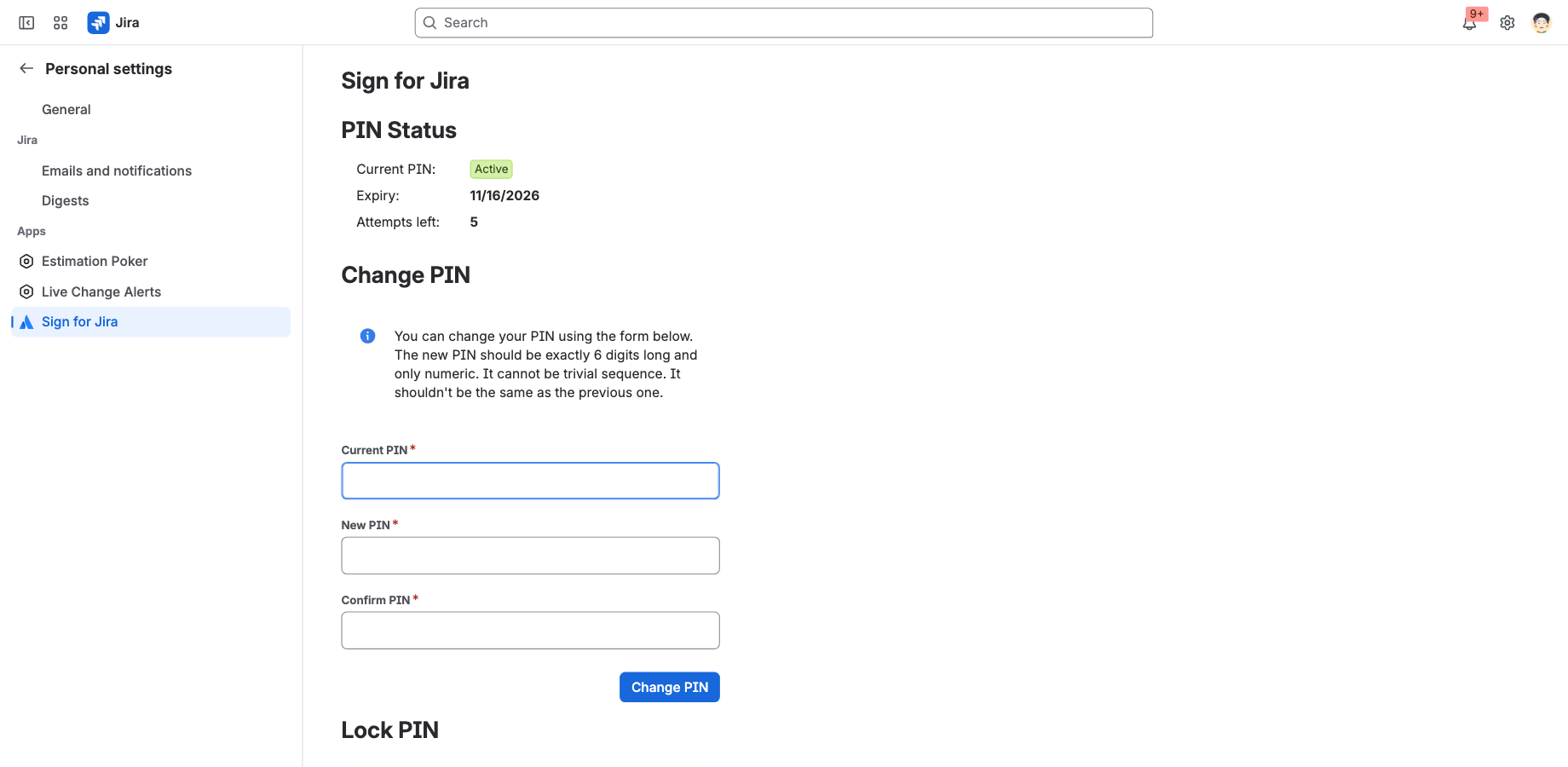
- The PIN is exactly 6 digits. Repeating digits (111111) and sequences (123456) are refused, and a new PIN must differ from the current one.
- A PIN is valid for 30 days. Renew it on the same page with Change PIN; an expired PIN cannot sign.
- After 5 wrong attempts the PIN is locked for 15 minutes, then works again.
- You can lock your own PIN on the same page if you think someone has seen it. A locked PIN can only be unlocked by a Jira admin, who resets it (see Settings); you then set a new one.
- PINs are stored only as hashes. Nobody, including admins, can read your PIN.
5. Signing a work item
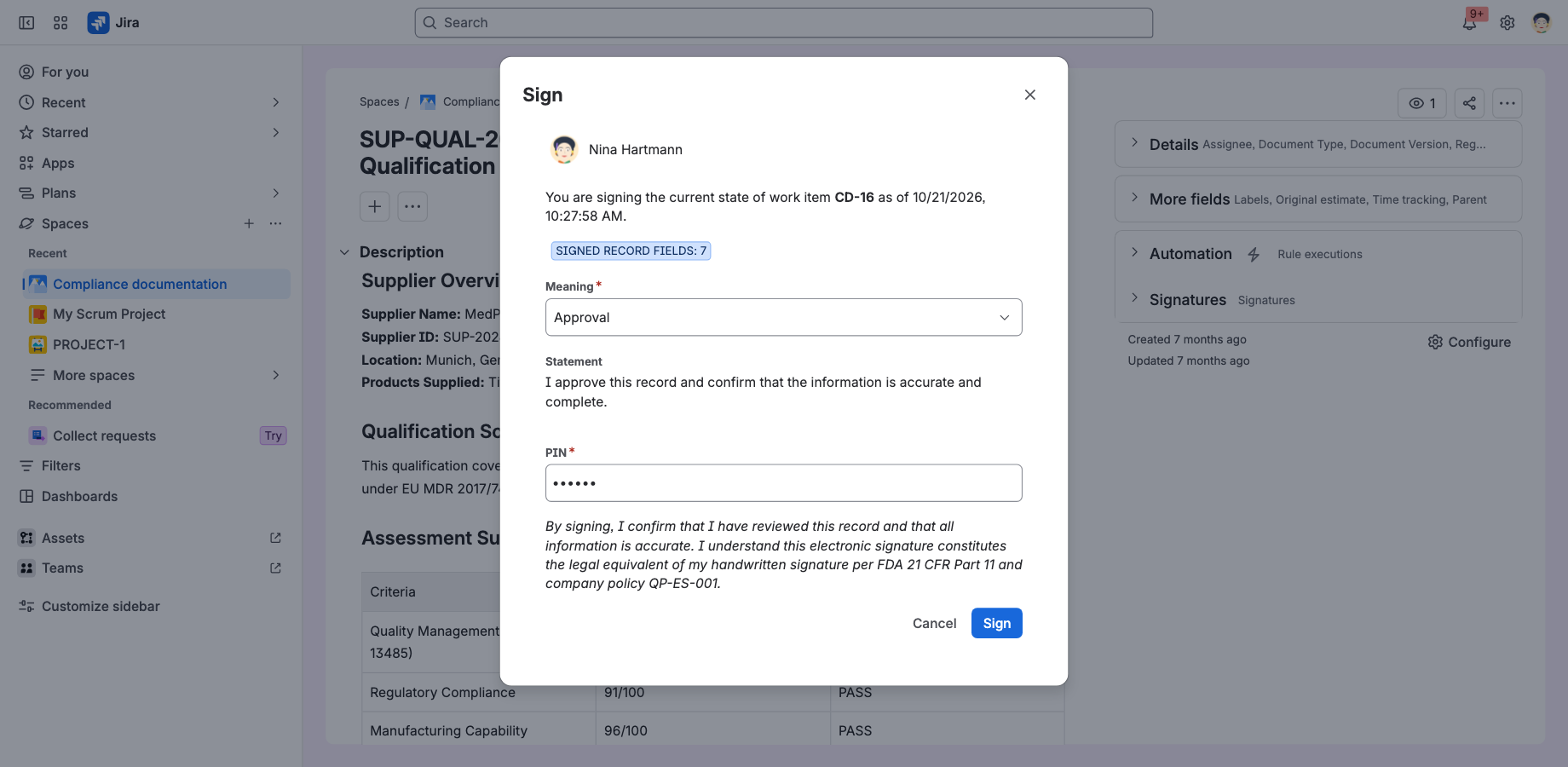
- Open the work item and choose Sign from its ••• menu, or click the pen icon in the Signatures panel.
- Check what you are signing: the work item and the time of the record, and, under Signed record fields, which fields your signature covers.
- Choose the Meaning of your signature. Its statement is shown below it and is stored with your signature.
- Read the consent message, if your space has one; it is also stored with your signature.
- Enter your PIN and click Sign. The signature appears in the panel as Valid.
- Several people can sign the same work item, each with their own meaning.
- A signature cannot be edited or deleted. To sign a changed record again, sign it again: the new signature is added, the old one stays.
- If someone changes a signed field while you have the dialog open, signing is refused and the dialog loads the latest data, so that you sign only what you reviewed. Review it and sign again.
- Only people the space allows to sign see the Sign action (see Settings).
6. Signatures and their validity
Each signature card in the panel shows the signer and the meaning, the validation status and time of signing, and the meaning's statement.
- Valid: the signed fields have the same values as when the signature was made.
- Invalid: at least one signed field has changed since. This is not an error; it shows that the record changed after signing. Restoring the exact signed values makes the signature valid again; otherwise sign again if your procedure requires it.
Comments, status changes and edits of fields that are not signed do not affect a signature (unless your space signs that field). The panel checks the signatures each time it loads; the refresh icon checks them again.
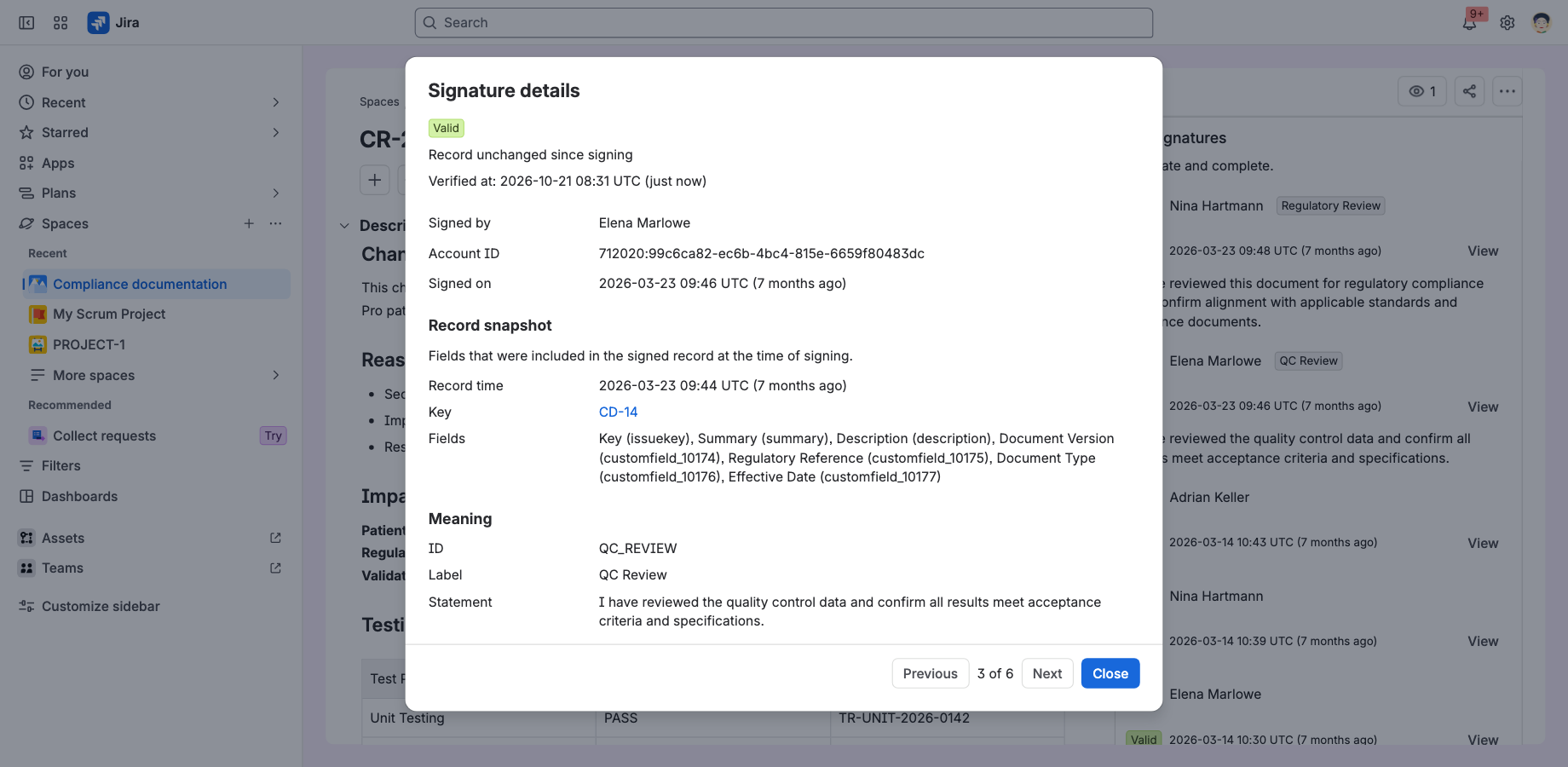
View on a card opens the signature's details: the status with the time it was checked, the signer, the time of signing, the signed fields, the meaning, the consent message and the technical details (signature ID, record hash, hash algorithm, app version).
7. Exporting signatures
The download icon in the Signatures panel opens the Export view of the work item in a new tab: every signature with its validation status, signer, account ID, times, signed fields, meaning, consent message, signature ID, record hash, hash algorithm and app version. Its buttons download the table as CSV or JSON, or open your browser's print dialog (Print, also to save as PDF). The export checks each signature again when it opens.
8. Settings
| Level | Who | Where in Jira | What |
|---|---|---|---|
| Site | Jira admins | Settings (gear icon) > Apps, then Sign for Jira in the sidebar | Sign on or off for the site; Enable only in spaces that opt in; User PIN management (reset or lock a user's PIN); the audit logs. |
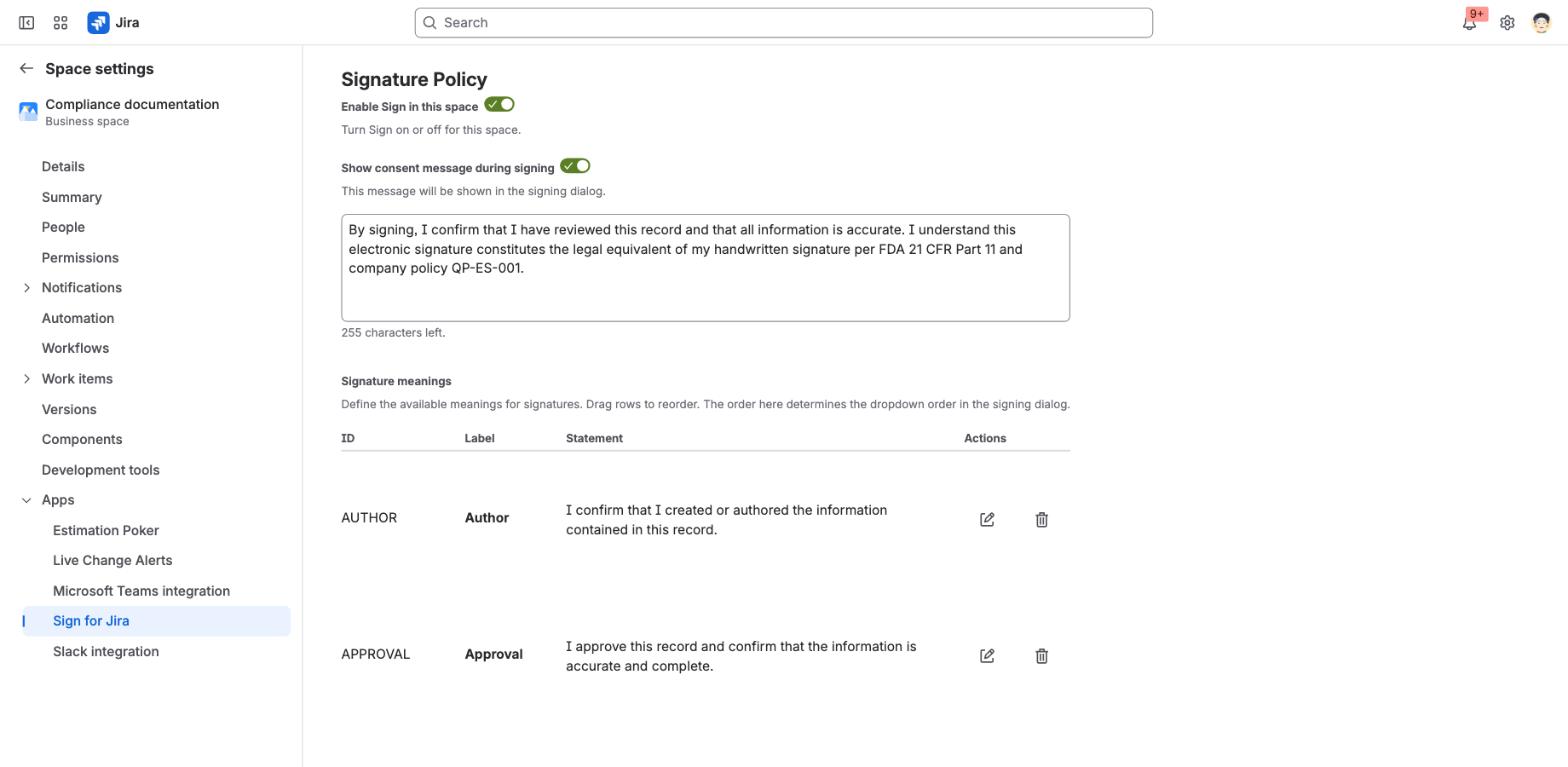
| Space | Space admins | The space's Space settings > Apps > Sign for Jira | Sign on or off in the space; the consent message; the signature meanings; who can sign; the signed record fields. |
| Personal | Every user | Personal settings > Apps > Sign for Jira | Your Signing PIN (section 4). |
Signature meanings
The meanings signers can choose from, each with an ID, a label (up to 20 characters) and a statement (up to 500 characters). Every space starts with Approval, Review and Author. Drag rows to reorder them; the first is preselected in the Sign dialog. Changing or removing a meaning does not change existing signatures, which keep the meaning as it was when they were made.
Consent message
An optional text shown in the Sign dialog, for example a reference to your electronic signature policy. The text shown is stored with each signature.
Who can sign
By default everyone who can browse the space can sign. Turn off Allow all space members to allow only selected Jira groups and space roles (being in any one of them is enough). Everyone who can see a work item can see its signatures.
Signed record fields
The fields a signature covers: by default key, summary and description; up to 60 system and custom fields. Unsupported field types are flagged. If a configured field is deleted, Sign stops new signatures in the space until the configuration is fixed. Existing signatures keep the fields they were made with.
Site settings
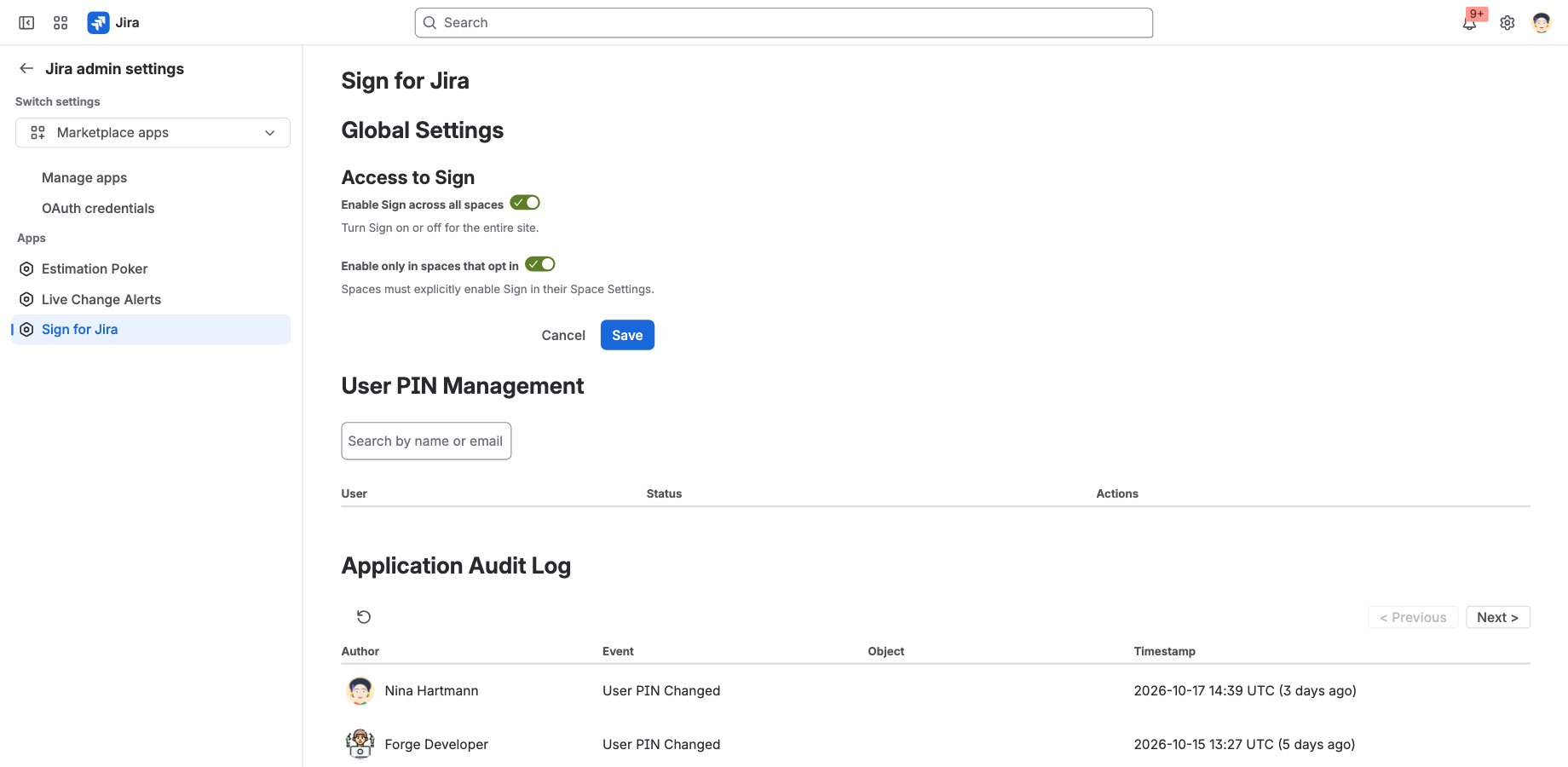
- Enable Sign across all spaces: off hides Sign everywhere without uninstalling it. Existing signatures stay.
- Enable only in spaces that opt in: Sign is off in every space until a space admin turns it on there. Use it to roll Sign out to selected spaces.
- User PIN management: search for a user to see their PIN status, Reset their PIN (they then set a new one) or Lock it. Both actions are logged.
9. Workflow rules
In the workflow editor, select a transition, then Add rule and Sign for Jira:
| Rule | Type | Effect |
|---|---|---|
| Restrict when no signatures are present | Condition | Hides the transition until the work item has a signature. |
| Restrict when signatures are present | Condition | Hides the transition once the work item has a signature. |
| Validate that the work item has at least one signature | Validator | Blocks the transition, with a message, until someone has signed. |
| Validate that the current user has signed the work item | Validator | Blocks the transition unless the person moving the work item has signed it. |
The rules check that signatures exist, not that they are still valid. They keep working when Sign is turned off for the site or space, and without a licence.
10. Automation, JQL fields and REST API
Since version 5.0 the signatures can be used outside the work item view:
- Jira Automation: the action Sign - Validate signatures checks every signature on a work item and returns the result as smart values, for example
{{fetchedSignValidation.status}}(NO_SIGNATURES, ALL_VALID or SOME_INVALID). Use it to comment, notify or stop a process when a signed record changes. Details and example rules. - Custom fields: Sign - Signature Data and Sign - Last Validation Status copy the signatures and their last check onto the work item, for JQL, filters, dashboards and Jira's REST API, for example
"Sign - Last Validation Status.status" = SOME_INVALID. The fields are read-only and updated a few seconds after a signing or an edit of a signed field. Details. - REST API: a read-only API returns a work item's signatures with their current status, for audit or quality systems. It uses OAuth 2.0 (3LO), applies Jira permissions, and is off until a site admin turns on App REST APIs for Sign for Jira in Connected apps. Details.
11. Audit logs
The site settings page has two read-only logs, newest first:
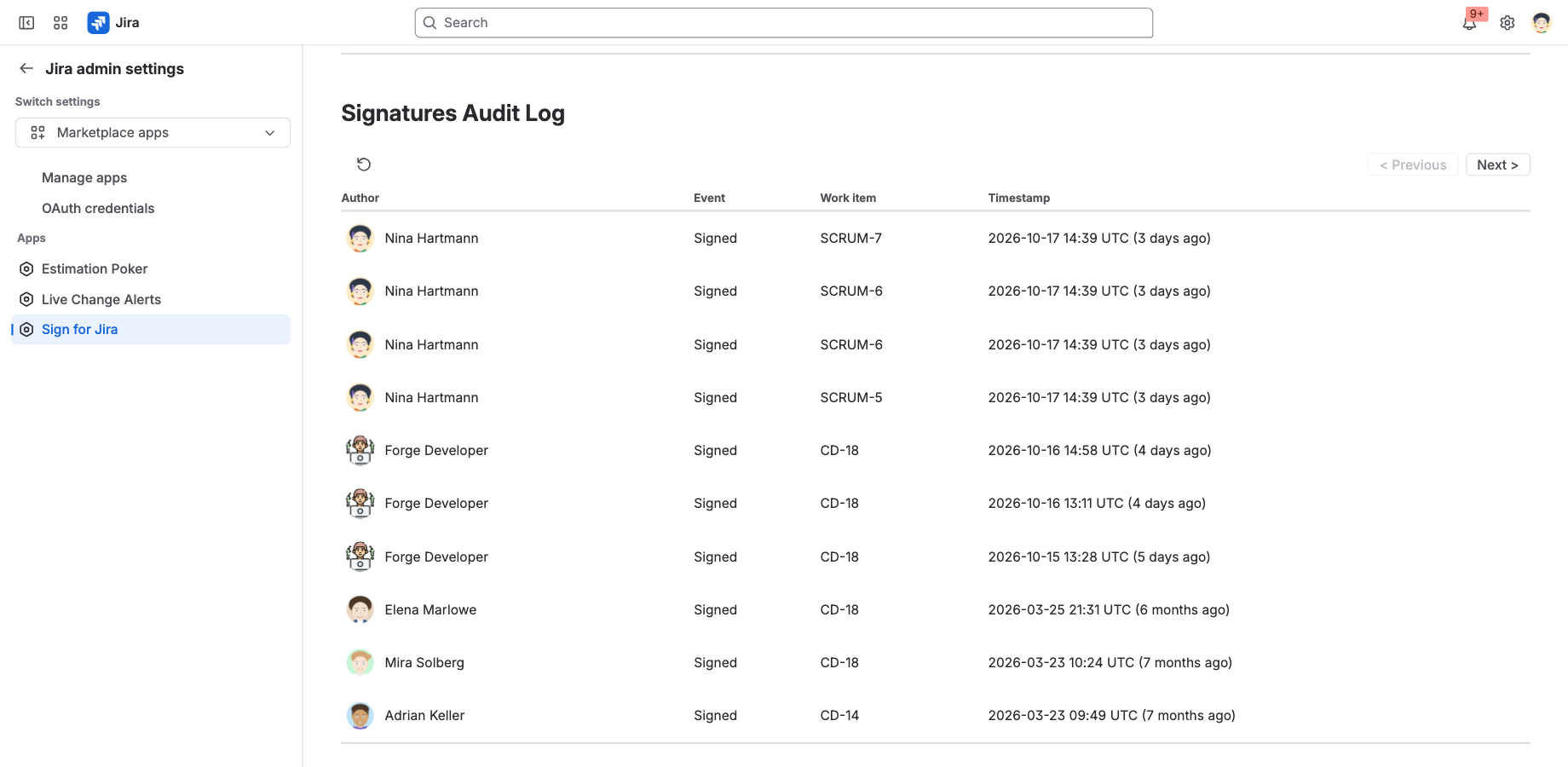
- Application Audit Log: PIN changes, temporary locks, locks and resets, and changes of the site and space settings, with who did it and when.
- Signatures Audit Log: every signature, with the signer, the work item and the time.
12. 21 CFR Part 11 and Annex 11
Sign for Jira provides technical controls that teams under FDA 21 CFR Part 11 and EU GMP Annex 11 rely on:
- Signer identification by the Atlassian login plus a personal Signing PIN, at every signature.
- The meaning of each signature, with its statement, recorded with the signature (Part 11 §11.50).
- The signature linked to the record by a hash of the signed fields, so later changes are visible.
- Signatures that cannot be edited or deleted, audit logs, and exports for inspections.
Using the app does not make a process compliant by itself. Validating Sign for Jira for your intended use, and the procedures around it (who may sign, PIN handling, training, record retention), remain your responsibility.
13. Troubleshooting
There is no Sign action or Signatures panel
The panel is shown only where Sign is on for the site and the space. If your Jira admin turned on Enable only in spaces that opt in, a space admin must turn Sign on in the space. If the panel is there but the Sign action is not, the space does not allow you to sign.
"You must set a Signing PIN before you can sign work items."
Set your PIN in Personal settings (section 4). The dialog links there; the same applies when your PIN has expired.
My PIN is locked
After 5 wrong attempts, wait 15 minutes. If it stays locked, it was locked on purpose; ask your Jira admin to reset it, then set a new one.
A signature turned Invalid
A signed field was changed after signing. Compare the work item's history in Jira with the signature's details to see what changed (section 6).
"Your product is not licensed!"
The app's licence for your site is not active. Ask your Jira admin to renew or buy it from Apps > Manage apps.
14. Privacy and security
- The app runs entirely on Atlassian Forge. It makes no connections to external servers and no data leaves Atlassian.
- It stores signatures (account ID, time, meaning, consent message, the names of the signed fields and their hash, not their values), PIN hashes, audit log entries and settings.
- PINs are hashed with scrypt and cannot be read by anyone.
Details: Privacy Policy, Cloud Security Statement, Data Processing Agreement and Terms of Service. More guides are in the Sign for Jira documentation space.
15. Support
For questions, problems or feature requests, contact us. Please include your Jira site address and, for problems, what you did and what you saw.
Support portal: Sign Support